
How to play music through your mic on Discord, and the two mistakes every tutorial makes
Every ‘play music through mic’ tutorial shows you how to wire a player into a virtual cable. Almost none of them mention that the music will come out pitch-shifted if a voice changer is in the path, or that a steady music bed makes Discord cut your voice off. Here’s what actually has to happen, and an app that does it.
The idea
Discord, Steam chat, games and OBS read from one input device: your microphone. To play music “through your mic”, you need a virtual microphone that carries a mix of your real mic and a music player, and you select that as the input. Nothing about Discord changes; it just hears a mic that happens to have music in it.
Wiring that up by hand means a virtual cable, a mixer to combine your mic with the player, and a lot of routing to get right; the support forums are full of people whose mic went quiet after a setting changed. Simple Voice Changer creates the virtual microphone itself (on Windows through the VB-CABLE driver Steam installs; on Linux and SteamOS through PipeWire or PulseAudio, automatically) and has the music player built in.
Mistake 1: routing the music through the voice changer
If you also use a voice changer, the obvious manual setup is: music player → voice changer’s input → virtual mic. The problem is that the voice changer processes everything on its input, so a pitch-shifted voice means pitch-shifted music. A “Deep Voice” preset turns your playlist into a dirge.
The right order is: mic → voice effects → then mix the music in → virtual mic. Simple Voice Changer’s Music page does exactly that internally: tracks are mixed in after the voice chain, so the music is never pitch-shifted, whatever your voice is doing.
Mistake 2: a music bed that never ducks
Discord’s voice activity detection and “input sensitivity” listen for you to start talking and cut the mic when you stop. A constant music bed either keeps the mic open forever (everyone hears your music all the time) or, if the music is quiet, the detector clips the start and end of your words. On the other end, your friends hear music at the same volume as your voice and can’t follow you.
The fix is ducking: lowering the music automatically while you speak and bringing it back when you stop. Simple Voice Changer’s Music page ducks the music under your speech by default (the Duck knob sets how far), with several playlists, shuffle and repeat, and Even out volumes so a loud track doesn’t blast the call.
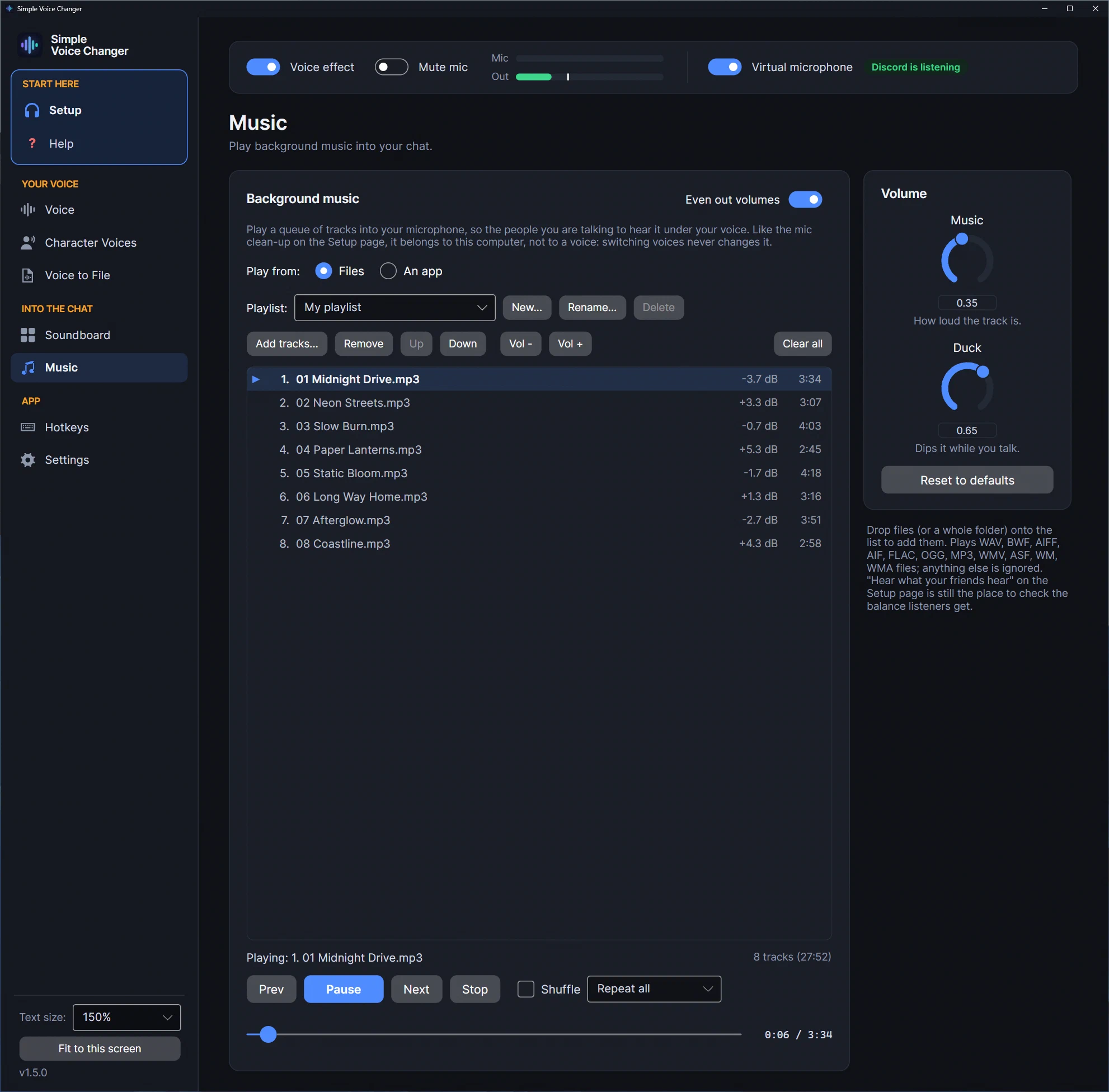
Control it without leaving the game
Since 1.5.1 the Music page has its own Hotkeys row: play/pause, next, previous and stop, the same keys as the Hotkeys page, which adds volume, shuffle and repeat. Any song can also have a Song key: select it, press the key, and from then on that key plays the song from whichever playlist it’s in, and pauses it when pressed again. That’s the quick way to an intro, a “be right back” track or a victory sting on a stream.
Spotify, a browser, or your friends: App to Mic
If the music is already playing somewhere else, you don’t need to copy files. App to Mic sends what another program plays into your mic: pick Spotify, a browser or a media player in the list and press Start sending. It joins after the voice effect, like the music, with its own App and Duck knobs and its own hotkey, and it plays alongside the Music page’s track instead of pausing it. You keep hearing the app exactly as before; Simple Voice Changer only listens to it. On Windows it needs Windows 10 version 2004 or later; on Linux it works through PulseAudio or PipeWire.
The same page can bring your Discord friends into a game, for a dubbing game they don’t own: keep your real microphone in Discord, pick Discord in App to Mic while you’re in a call, and pick the virtual microphone in the game. A checklist on the page marks each step as it sees it, and a voice chat app is never ducked, because those are people talking.
Streaming with OBS
Two ways, both since 1.5.1:
- Music as its own source: turn off Send to chat and turn on Hear it myself on the Music page. The music then plays only on your speakers, and OBS picks it up with Desktop Audio (or on Windows an Application Audio Capture of the app), so you can set its level in OBS or keep it off a recording track. Your changed voice and your sounds still come from the virtual mic.
- Everything in one source: add the virtual mic in OBS as an Audio Input Capture and leave Send to chat on. Then keep OBS’s Noise Suppression and Noise Gate filters off that source: they treat music and clips as noise.
Sound effects rather than songs
If what you want is one-press clips (an airhorn, a laugh track, a sting) rather than a playlist, that’s a soundboard, and the same rules apply: clips should join after the voice effect and should never be pitch-shifted. Simple Voice Changer’s Soundboard page does that, with a global hotkey per sound; see a soundboard for Discord.
Rules and copyright
- Streams: copyrighted music in a stream is still copyrighted. Twitch and YouTube mute or strike recordings that contain it. The app can’t help with that; it’s just a mixer.
- Servers: many Discord servers and game communities ban music or soundboards in voice channels, and members can report it. Check the rules of the place you’re in, and keep the “Stop all” key close.
- Volume: keep the music well under your voice; the point is a bed, not a broadcast.
One-time purchase on Steam, for Windows and SteamOS/Linux.
Related guides
-
A virtual microphone on Linux without the setup: how Simple Voice Changer creates and removes it
What a virtual microphone is on PipeWire or PulseAudio, why it usually means maintaining sound-server configuration by hand, and how Simple Voice Changer creates one automatically as your normal user, checks it, and removes it on quit, verified on PipeWire 1.6.