
SIMPLE VOICE CHANGER — SOUNDBOARD & MIC EFFECTS
Simple Voice Changer: voice changer & soundboard for Windows, SteamOS & Linux
A real-time voice changer and soundboard for Discord, games and streams. Pick one of 200 neural voices that run on your CPU, load your own RVC voice model to sound like a character, or start from ten classic effects, and press play on any voice to hear yourself through it before anyone else does. Offline, no account, one-time purchase.
Windows + SteamOS/Linux · one-time purchase · no account
Windows 10/11 (64-bit) · SteamOS (Desktop Mode) · Linux with PipeWire or PulseAudio
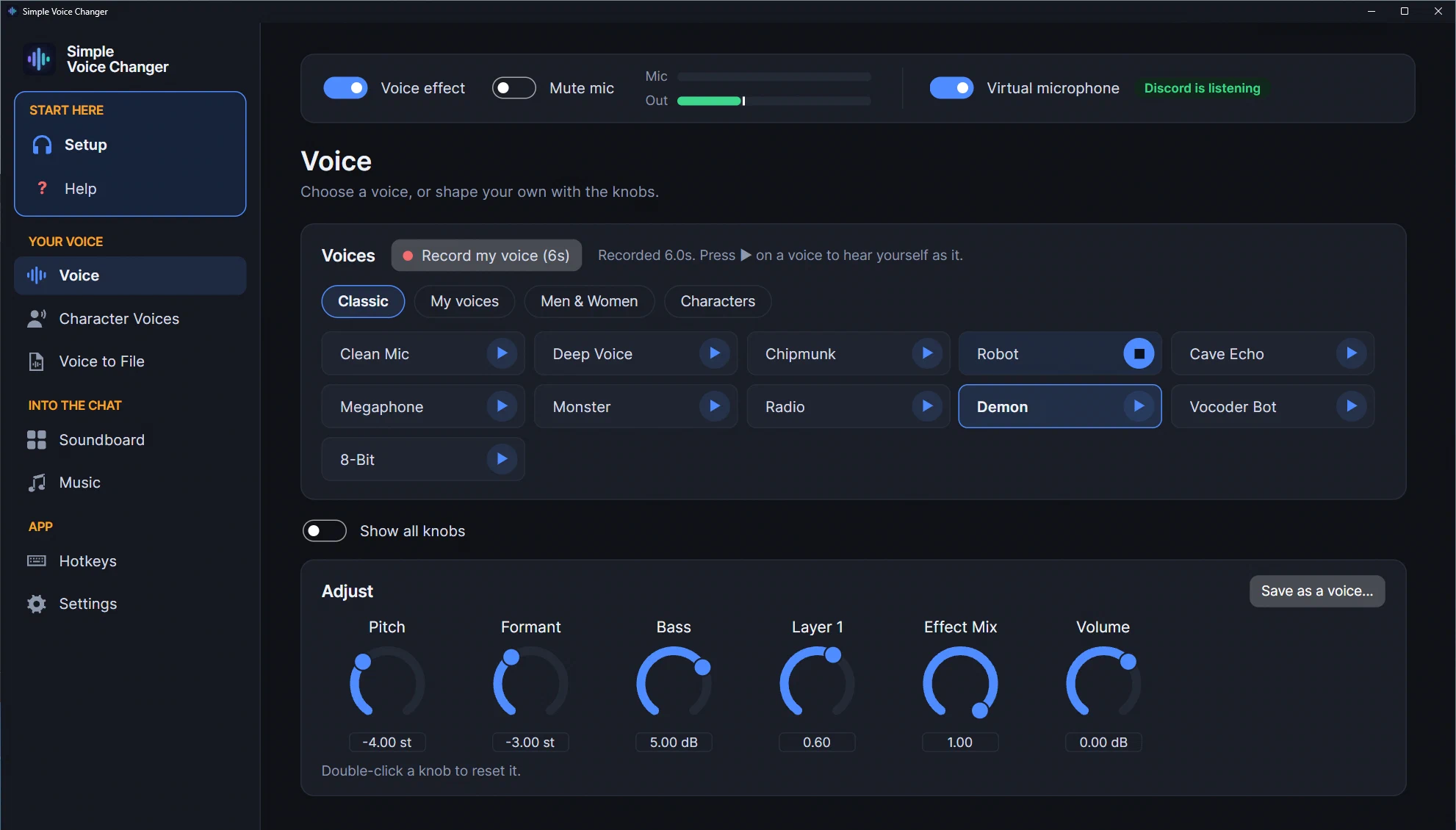
Screenshots
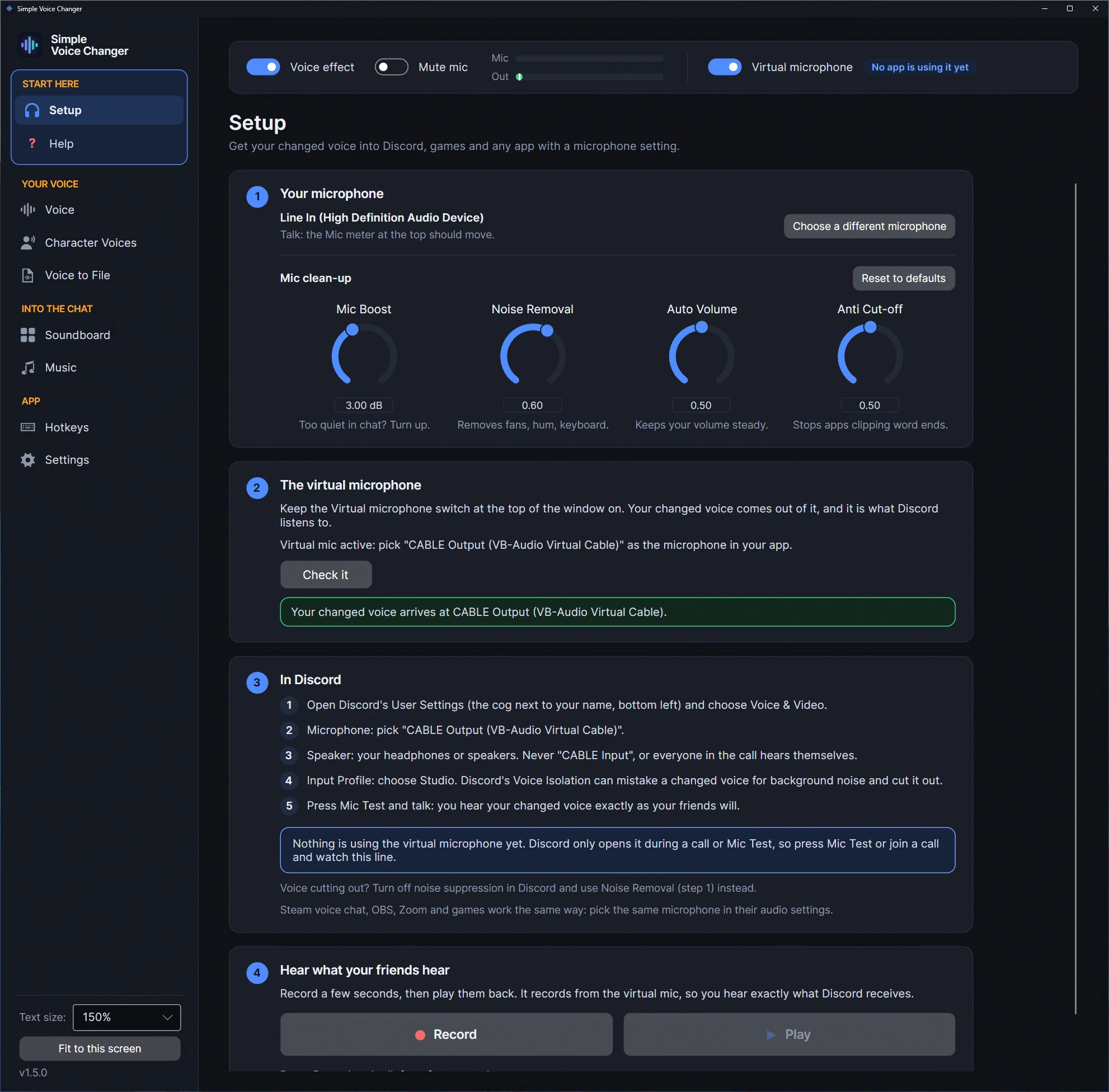
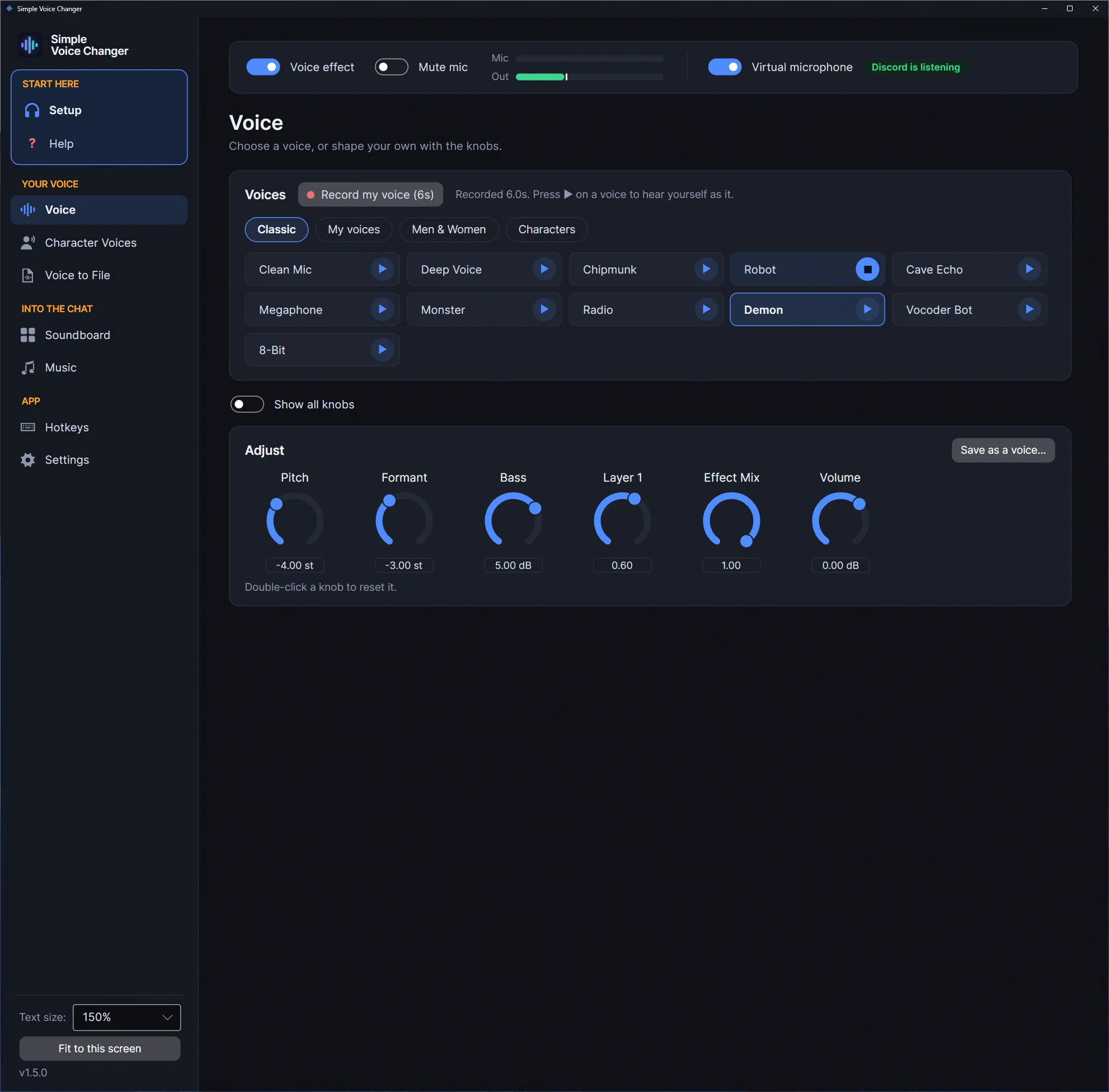
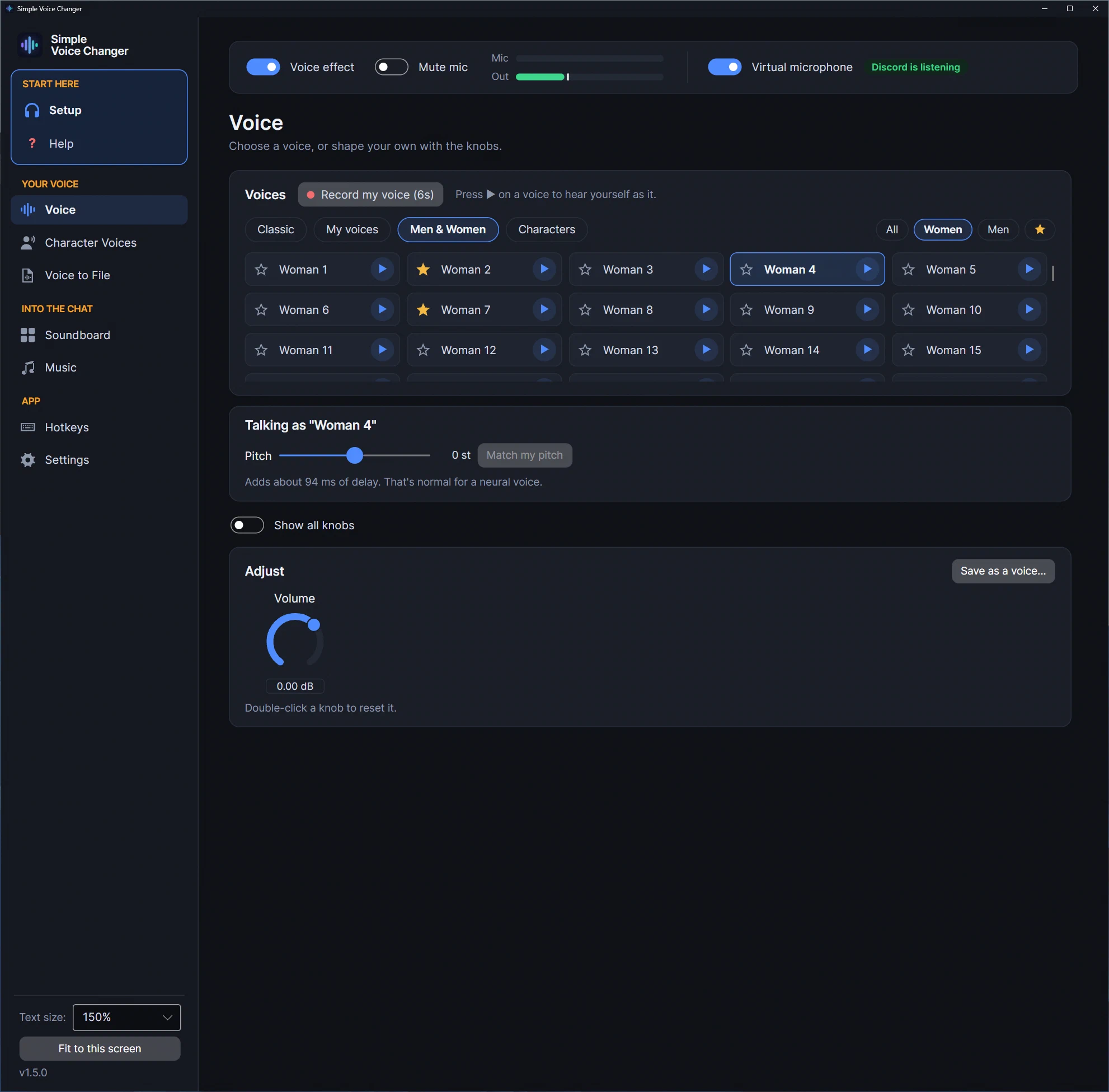
Screenshots: version 1.5.0 on Windows 11. 1.5.1 adds an App to Mic page to the sidebar, under Into the chat.
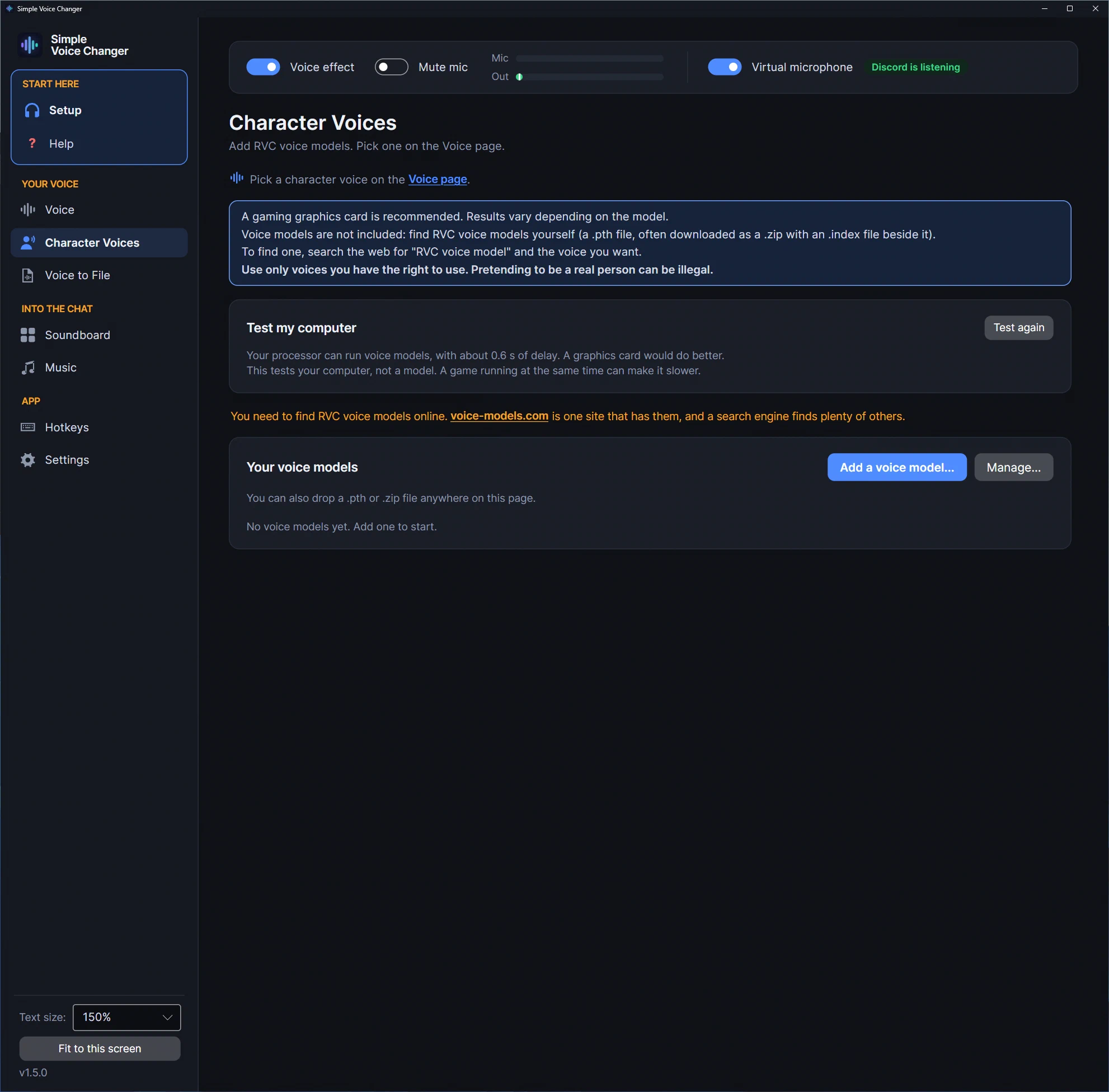
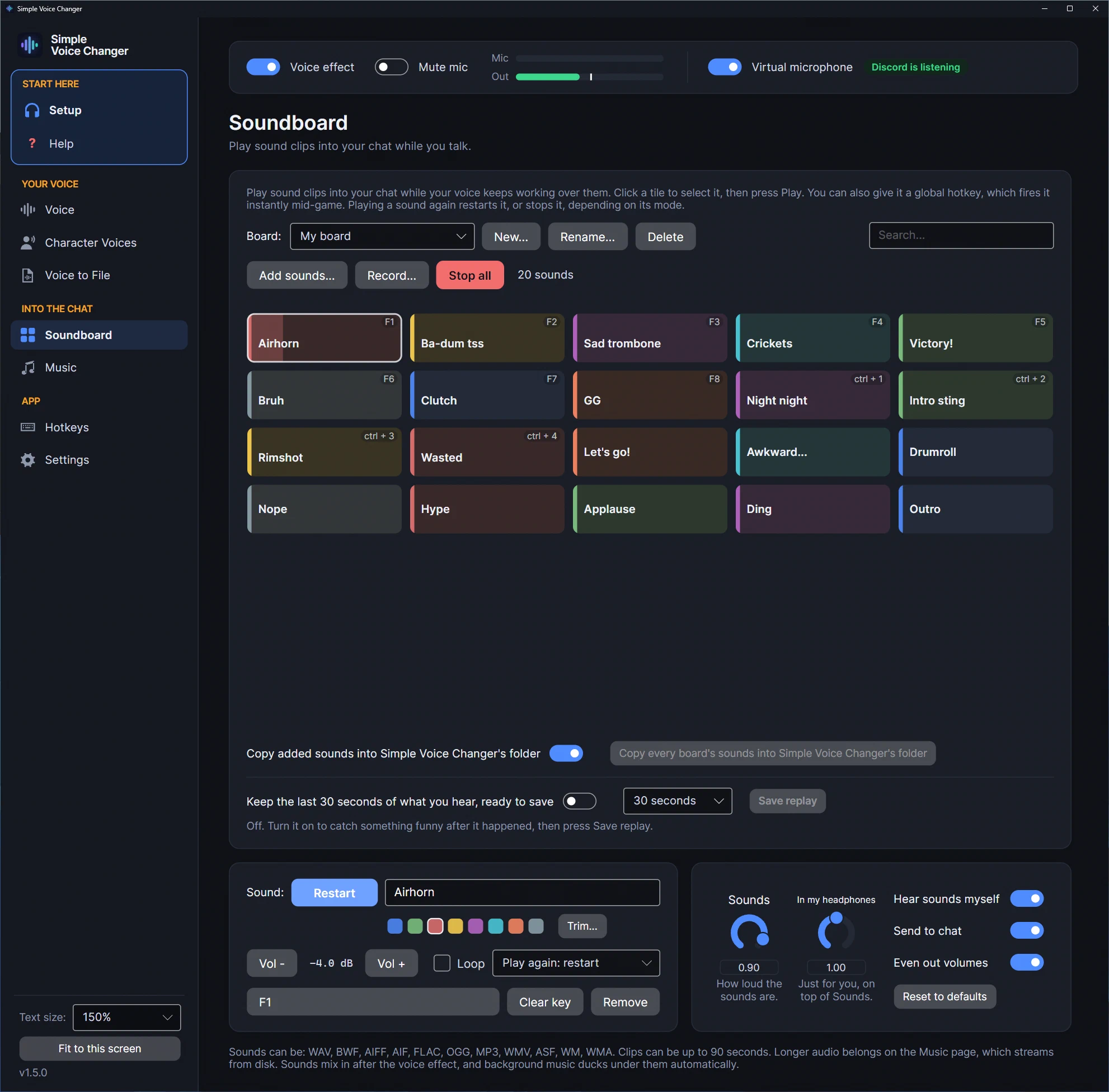
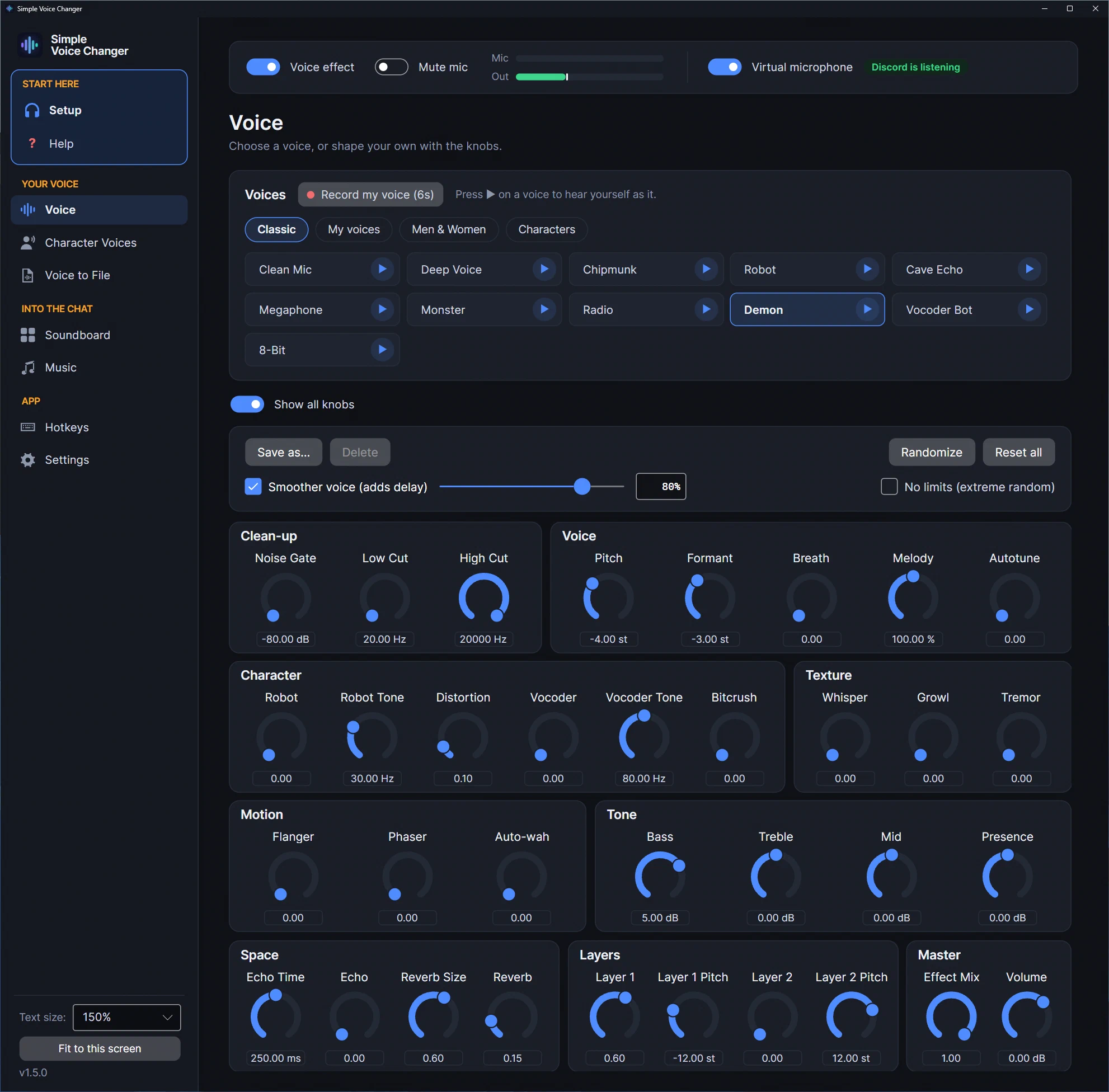
The short version, for quoting or skimming, is on the facts page.
New in 1.5.1
- App to Mic, a page of its own: send Spotify, a browser or your Discord friends into your mic, with its own volume, ducking and hotkey, while your music keeps playing.
- Music hotkeys and a key per song: play/pause, next, previous and stop are set right on the Music page, and any song can have a key that plays it from whichever playlist it’s in and pauses it on a second press (intros, “be right back” music).
- Hotkeys that work in games: a key still fires while you hold Shift or Ctrl to sprint or crouch; push to talk no longer takes the key away from the game; the numpad, F13 to F24, media keys and punctuation keys can be shortcuts; and a key another program already owns says so instead of looking set.
- Send to chat and Hear it myself are back on the Music page, so a streamer can play music on their own speakers only and give it its own source in OBS.
- The Hotkeys page is grouped by what the keys are for (Voice, Microphone, Music, App to Mic, Soundboard, Instant replay), with one card listing every song and sound that has a key of its own.
Hear yourself before anyone else does
Press Record my voice once and talk for six seconds. From then on every voice in the Voices card has a play button that plays you through it, on your speakers only, never into the call. So you can try the ten classics, the neural voices and your own saves without going live. The Setup page’s Hear what your friends hear goes one step further: it records what actually arrives at the virtual microphone, which is exactly what Discord receives.
Neural voices on your CPU
Open the Men & Women tab on the Voice page and click a voice: a small neural network (Beatrice 2) turns your voice into one of 200 human voices, men and women, as you speak. Talk for a few seconds, press Match my pitch, and add any effect on top. It runs on your processor, offline, with no graphics card.
The card under the voices says how much delay the voice adds. On our test machines that was about 75 to 85 ms, using 20 to 31% of one CPU core (turn on Show all knobs and the card shows the CPU figure live). If your computer keeps falling behind, Lower CPU use turns on by itself, for 20 ms more delay. Your real voice is never sent: if the voice can’t keep up, the call hears silence, not you.
Character Voices: bring your own RVC voice model
Have an RVC voice model of a character? Add its .pth file, or the .zip you downloaded, on the Character Voices page, then click it on the Voice page’s Characters tab and talk through it live, with every effect still on top. Tell it how high the character’s voice is (Deep, Medium, High or Very high) and Auto pitch sets the shift from your own voice. An .index file that came with the model makes it sound closer, and Likeness sets how far.
- No voice models are included. You find them yourself; the page names one site that lists them, and a search engine finds plenty of others. Results vary with the model.
- A gaming graphics card is recommended (any brand). A fast processor can run it with more delay.
- Test my computer tells you in a few seconds whether your PC can run it, and how much delay to expect.
- Model files are opened as data. A
.pthfile can carry code; the app reads only the voice data and never runs anything inside it.
Ten classic effects and 34 knobs
Clean Mic (your own voice, only cleaned up) and ten classics: Deep Voice, Chipmunk, Robot, Cave Echo, Megaphone, Monster, Radio, Demon, Vocoder Bot and 8-Bit, ready to use or to start from. The Voice page shows a few knobs for the voice in use; turn on Show all knobs for all of them:
- Voice: pitch, formant, breath, melody, autotune
- Character: robot, vocoder, distortion, bitcrush
- Texture and motion: whisper, growl, tremor, flanger, phaser, auto-wah
- Space and tone: echo, reverb, bass, mid, presence, treble
- Clean-up: noise gate, low cut, high cut
- Layers: two extra pitched copies of your voice for demons, harmonies and choirs
Drag a knob, scroll on it or use the arrow keys; double-click to reset it. Save your own voices in My voices and give each one a global hotkey, or press Randomize for something new. Smoother voice trades a little more delay for a cleaner result.
Soundboard and instant replay
- Soundboard: your own clips, up to 90 seconds each, on as many named boards as you like, up to 96 sounds a board and 8 at once. Every sound can have its own global hotkey (the same key can play a different sound on each board), can restart, stop, loop or play only while its key is held, and can be trimmed. Your voice keeps working over them. Sounds you add are copied into the app’s own folder, so a board doesn’t break when you tidy your Downloads.
- Record and replay: record a clip of your voice straight onto the board, or turn on instant replay to keep the last 10 to 60 seconds of what you hear, ready to save as a tile and play back into the call.
Music, and other apps, into your mic
- Background music: a queue of your own tracks, with several playlists, shuffle, repeat and Even out volumes, played into the call. It ducks under your voice automatically and is never pitch-shifted, because it joins after the voice effect. Play/pause, next, previous and stop keys sit on the Music page, and any song can have its own key.
- For streams: turn off Send to chat and turn on Hear it myself, and the music plays only on your speakers, so OBS can pick it up as a source of its own while your voice and sounds still come from the virtual mic.
- App to Mic: send what another program plays into your mic: Spotify, a browser, a media player, or your Discord friends, so they can join a dubbing game they don’t own. You keep hearing the app as usual. It has its own volume, duck and hotkey, a voice chat app is never ducked, and a checklist shows when Discord, the virtual mic and the game are set up right. On Windows it needs Windows 10 version 2004 or later.
Setup that checks itself
Turn it on and your PC gets a new microphone. Setup, at the top of the sidebar, goes through it in four steps: your microphone and its clean-up; the virtual microphone, where Check it sends a short, quiet tone through it and says whether it arrives, or what to fix; Discord’s own settings, with which app is using the virtual mic right now; and Hear what your friends hear. A chip at the top of the window says “Discord is listening” (green), that no app is using it yet (blue), or that something needs attention (amber). Steam voice chat, OBS, Zoom and games work the same way: pick the same microphone in their audio settings.
A cleaner mic, built in
Mic Boost, Noise Removal (RNNoise) and Auto Volume clean up your microphone before any effect runs, so fans, hum and keyboard clatter stay out of the call, and Anti Cut-off keeps apps that listen for speech from clipping the ends of your words. They sit on the Setup page and belong to your computer, not to a voice, so switching voices never changes them. Noise Removal needs the device at 48000 Hz.
Hotkeys that work in games
- Global hotkeys for everything: the voice effect on or off, mute, switch voices, fire sounds, run the music, start or stop App to Mic, save a replay.
- The keys you’d actually use: letters, digits, F-keys up to F24 (Stream Decks and macro pads), the numpad, media keys and punctuation, with or without Ctrl, Alt or Shift. A key set without Ctrl or Shift still fires while you hold either, so sprinting or crouching doesn’t block it.
- The game keeps its key. Push to talk, and sounds that play while their key is held, only watch the key, so the game still gets it too. (On Wayland desktops where the desktop itself registers the shortcuts, the desktop decides.)
- No silent conflicts: a key another program already owns says so under its row, and a key you move from another action says where it came from.
- Push to talk, both ways. Hold a key to speak, or let the app hold your game’s push-to-talk key while a sound or music plays, so clips aren’t lost in push-to-talk games. A game running as administrator, and some anti-cheat, ignore keys sent by another program; the app says so.
- Remote control from a Stream Deck, Streamer.bot, your phone or a VR overlay. It’s off by default; when you turn it on, the app answers on this computer only, unless you also allow other devices on your network, and every request needs an access key.
Voice to File
Voice to File puts the voice you’ve set up on recordings you already have, for videos and voice-overs, and saves new WAV files next to the originals. The originals are never touched.
How the virtual microphone works
- Windows: the changed voice goes out through VB-CABLE, which Steam installs during installation. Pick CABLE Output (VB-Audio Virtual Cable) as the microphone in Discord, Steam chat, OBS, Zoom or the game, and never “CABLE Input” as your speaker. If the device isn’t ready yet, restart Windows once; if it’s still missing after that, the Setup page has a button that installs it. If you already use VB-CABLE for other routing, the two uses share one cable.
- SteamOS and Linux: the app creates a PipeWire or PulseAudio virtual source at run time as your normal user and removes it when you quit. No driver, no root, no config files. Pick Simple Voice Changer Mic as the microphone in your app. More on the virtual microphone on Linux page.
Requirements and platform notes
- Windows 10 or 11, 64-bit. Steam lists an Intel Core i5-10400 or AMD Ryzen 5 3600 as the minimum processor and 2 GB of disk. For Character Voices it lists a GeForce GTX 1660 or Radeon RX 5600 XT or better (an RTX 3060 or RX 6600 XT recommended). VB-CABLE is a kernel audio driver; the app’s own reinstall option needs admin rights. App to Mic needs Windows 10 version 2004 or later.
- SteamOS and Linux: a native build, not Proton, with the neural voices and Character Voices included (graphics cards are used through Vulkan). It needs a PipeWire or PulseAudio sound server; JACK isn’t supported.
- Hotkeys on Wayland: on desktops that offer global shortcuts to apps (KDE Plasma 6, GNOME 48 and later, SteamOS’s Desktop Mode) the hotkeys are registered with the desktop, which may ask you once to confirm them; the Hotkeys page says when a shortcut is still waiting for that. Elsewhere on Wayland they read
/dev/input, so your user must be in theinputgroup (sudo usermod -aG input $USER, then log out and in); the app shows the command. X11 needs nothing. - SteamOS Game Mode hasn’t been verified by us; use Desktop Mode. There is no Steam Deck compatibility rating.
- Hotkeys on Wayland: on desktops that offer global shortcuts to apps (KDE Plasma 6, GNOME 48 and later, SteamOS’s Desktop Mode) the hotkeys are registered with the desktop, which may ask you once to confirm them; the Hotkeys page says when a shortcut is still waiting for that. Elsewhere on Wayland they read
- Languages: English, German, Spanish, Portuguese (Brazil), Russian, Ukrainian and Simplified Chinese. Text size goes from 75% to 200% and applies at once.
- No macOS or mobile version. No text-to-speech.
Questions people ask before buying
Does it use AI?
Two optional features do: neural voices and Character Voices each run a small neural network on your own PC, offline. Both are off until you pick one, and both only change the sound of what you say; neither writes words or speech of its own. The ten classic effects and the knobs are ordinary signal processing.
Can it make me sound like a specific person or character?
It ships no voices of real people or characters: the 200 neural voices are anonymous audiobook readers. If you load an RVC voice model of a character that you found yourself, you sound like that model, as good as the model is; it changes the sound of your voice, not the way you speak. Use only voices you have the right to use. Pretending to be a real person can be illegal.
Can I hear what I sound like before I join a call?
Yes. Record six seconds of your voice once, then press the play button on any voice to hear yourself through it on your own speakers. The Setup page also records what arrives at the virtual microphone, so you hear exactly what your friends will.
Do I need a graphics card?
Not for the neural voices, the classic effects, the soundboard or the music: they all run on the processor. Character Voices is the exception: a gaming graphics card is recommended, and Test my computer tells you in a few seconds whether your PC can run it.
How much delay does it add?
A neural voice shows its delay in its card; on our test machines it was about 75 to 85 ms. Character Voices adds about 0.3 seconds on a graphics card and about half a second on a processor. We haven’t measured the classic effects precisely, so we don’t quote a number; Smoother voice adds a little more when you turn it on.
Does it work with Discord, Steam chat and games?
Yes. Pick the virtual microphone as your input device in the app; the Setup page checks that your changed voice arrives, walks you through Discord’s settings and shows when Discord is listening. If friends hear a choppy voice, set Discord’s Input Profile to Studio (or turn off another app’s noise suppression) and use the app’s Noise Removal instead.
Can I play Spotify, or my Discord friends, into a game?
Yes, with App to Mic: pick the app that’s playing (Spotify, a browser, Discord in a call) and press Start sending. For friends in a dubbing game, keep your real microphone in Discord, send Discord with App to Mic, and pick the virtual microphone in the game; the page shows a checklist for those steps.
Do the hotkeys work while I'm in a game?
Yes: they’re global, they still fire while you hold Shift or Ctrl, and push to talk only watches its key, so the game gets it too. A game running as administrator ignores keys that another program presses for it, so for the automatic push-to-talk key in such a game, run the app as administrator too. On Linux Wayland, see the platform notes above.
What do I need on Windows?
Windows 10 or 11, 64-bit. Steam installs the free VB-CABLE driver (by VB-Audio, donationware) during installation; Windows may need one restart. There’s no account and no internet requirement.
Does it work on SteamOS and Linux?
Yes, natively, neural voices and Character Voices included. The virtual mic is created through PipeWire or PulseAudio as your normal user and removed when you quit. Use Desktop Mode on SteamOS; Game Mode hasn’t been verified. See the Linux page.
Does it have a soundboard?
Yes: named boards, a global hotkey per sound, clips up to 90 seconds, up to 8 at once and 96 per board, recording onto the board and instant replay. It has no clip library beyond a few original starter sounds; you add your own.
Guides
Each guide answers one question people ask before they buy, with what we tested on the app and dated sources. The short version of everything is on the facts page.
-
A soundboard for Linux and the Steam Deck: Soundpad doesn't run here, so here's one that does
Soundpad is Windows-only (its Steam page lists Windows 7 or newer and nothing else). Simple Voice Changer's Soundboard runs natively on Linux and SteamOS: named boards, a global hotkey per sound, clips mixed into the same virtual mic as your voice, verified on this site's Linux machine.
-
A virtual microphone on Linux without the setup: how Simple Voice Changer creates and removes it
What a virtual microphone is on PipeWire or PulseAudio, why it usually means maintaining sound-server configuration by hand, and how Simple Voice Changer creates one automatically as your normal user, checks it, and removes it on quit, verified on PipeWire 1.6.
-
A voice changer for Linux in 2026: native, from Steam, with a soundboard (and no, Voicemod doesn't run here)
Simple Voice Changer is a native Linux voice changer and soundboard sold on Steam: it creates its own PipeWire or PulseAudio virtual microphone with no driver and no root, runs under the Steam Linux Runtime on any current distribution and SteamOS, and was verified on this site's Linux machine.
-
A voice changer without a subscription, an account or a server: what 'buy once' actually gets you
How subscription voice changers are sold, without quoting prices, and what changes in practice when the app is bought once on Steam, runs offline and needs no account: no renewals, no lock-outs, no forced redesigns, your files on your PC. With the honest trade-off.
-
A Voicemod alternative that runs offline, on Linux, with no subscription
Why people look for a Voicemod alternative (subscriptions, the V3 redesign, log-in outages, more than one soundboard, moving to Linux) and what Simple Voice Changer does about each: neural voices on your CPU, your own RVC models, named soundboards, music and apps under your voice, offline, one price, Windows and Linux.
-
How to play music through your mic on Discord, and the two mistakes every tutorial makes
Playing music, Spotify or sound effects through your mic in Discord, games or streams on Windows or Linux: why music routed through a voice changer comes out pitch-shifted, why a music bed breaks voice detection unless it ducks, and how Simple Voice Changer's Music page and App to Mic handle both.
-
How voice changers work: pitch, formant, robots, neural voices and what each can't do
What a real-time voice changer actually does to your voice: pitch and formant shifting, vocoders, distortion, echo and reverb, and how neural voice conversion differs. How the audio reaches Discord and games on Windows and Linux, how much delay each kind adds, and the honest list of what each can't do.
Get Simple Voice Changer
Windows + SteamOS/Linux · one-time purchase · no account. The price, and any discount running, is on the Steam page.